Screen Recording stopped working after I updated LeafyApp
Happens the first time you open LeafyApp after an update. Grant the permission once more and it's done for good.
Why this happens
An update can change LeafyApp enough that macOS treats it as a new app and forgets the permission.
It still shows as on in System Settings, but scans fail or come back black. The entry is stale, not broken.
How to fix it
-
Quit LeafyApp from the leaf icon in your menu bar. Closing the window isn't enough.
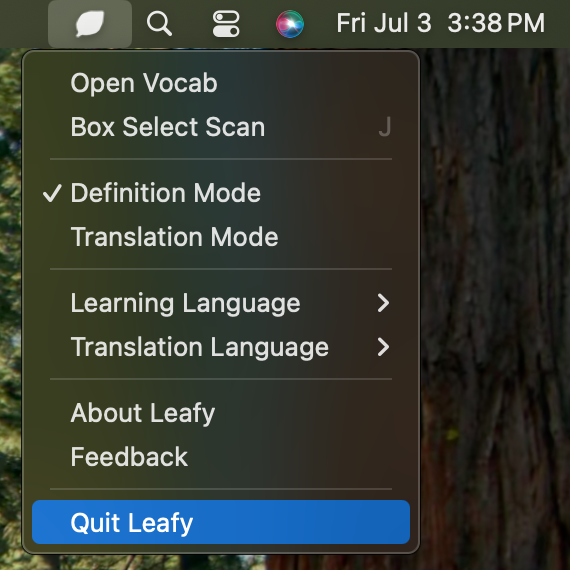
-
Open System Settings → Privacy & Security → Screen Recording.
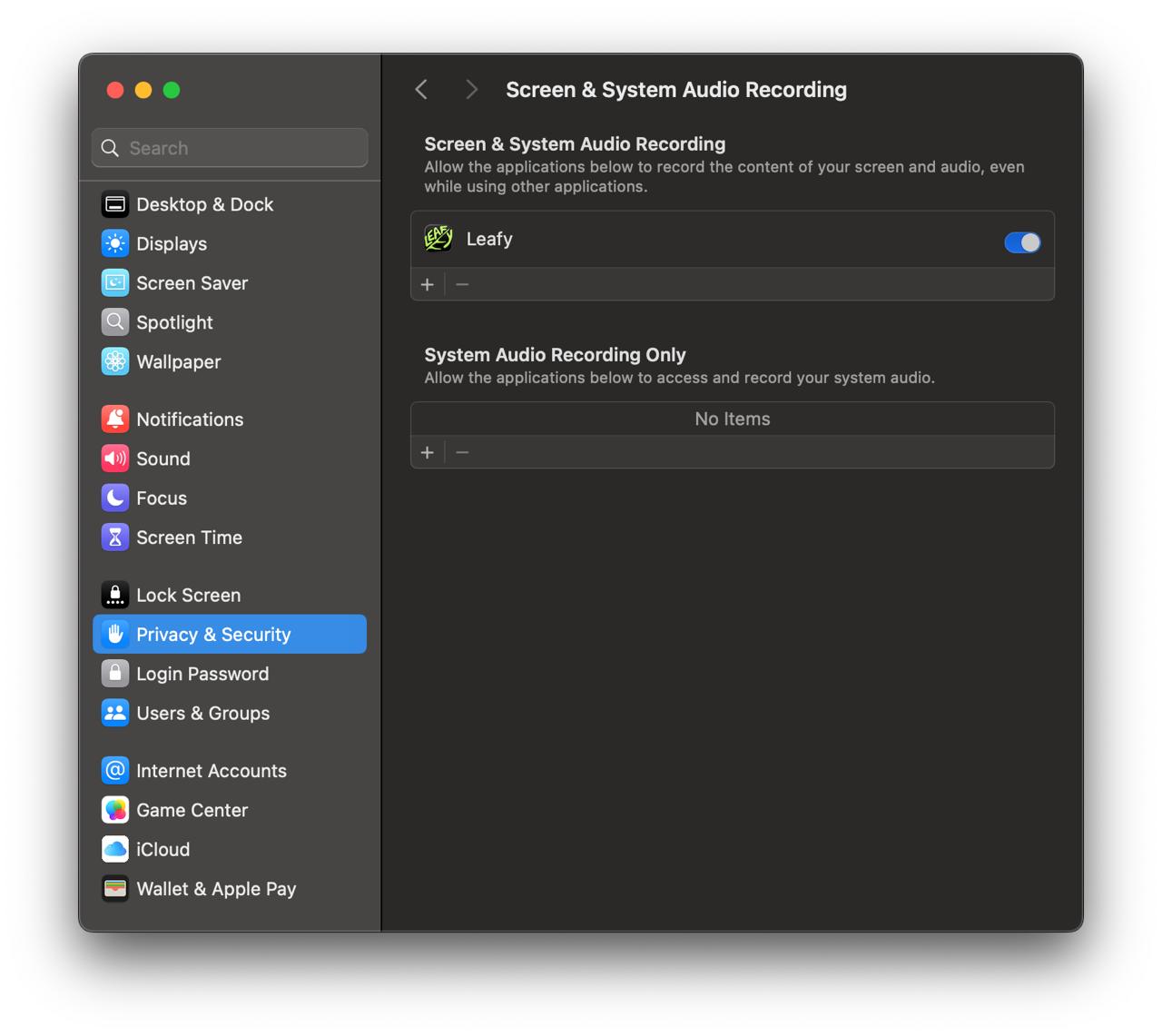
-
Select LeafyApp and click − below the list to remove it. Switching it off isn't enough: the entry has to go so macOS asks again.
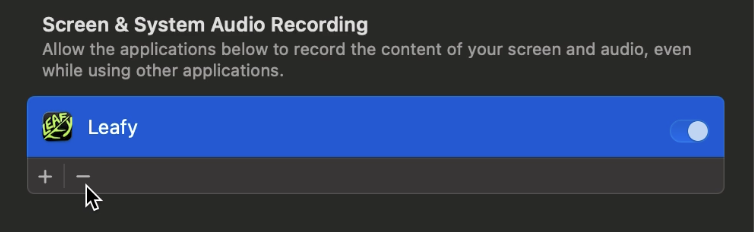
-
Open LeafyApp again and press ⌥A. macOS asks for permission, and LeafyApp shows this window.
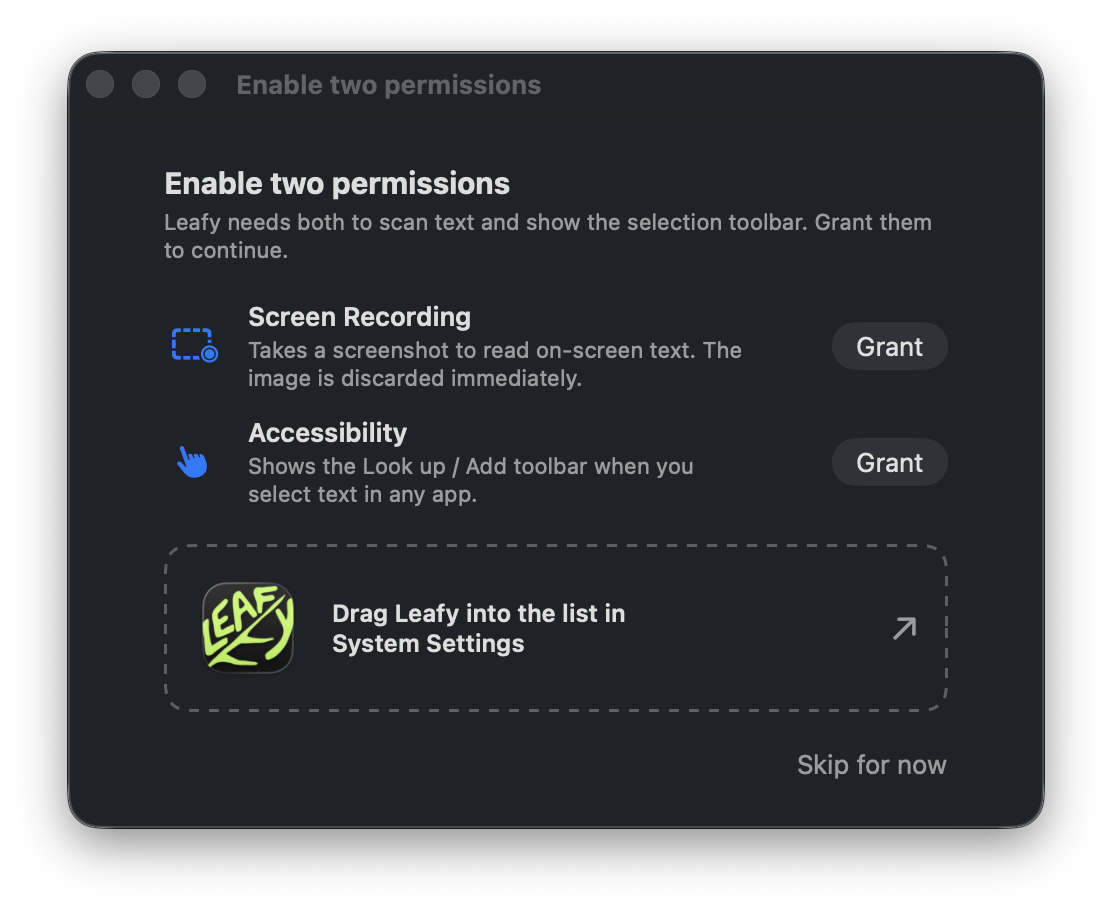
- Turn the switch on for LeafyApp in Screen Recording, or drag LeafyApp from that window straight into the list.
-
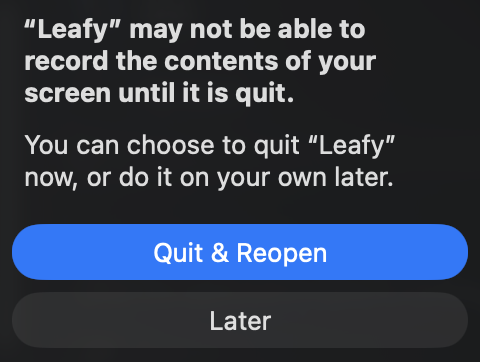
macOS asks to restart LeafyApp: click Quit & Reopen. The permission only takes effect then.
This is a one-time thing
Future updates won't ask again.
Still stuck? Email binjto@gmail.com, or ask in the Discord.
Join the Discord