Help
Seven things people write to me about, in the order you are likely to need them.
Search help
Start here: your first word
The first time you open LeafyApp, macOS asks for Screen Recording and Accessibility . Say yes to both, or nothing can be scanned.
1. Pick your language
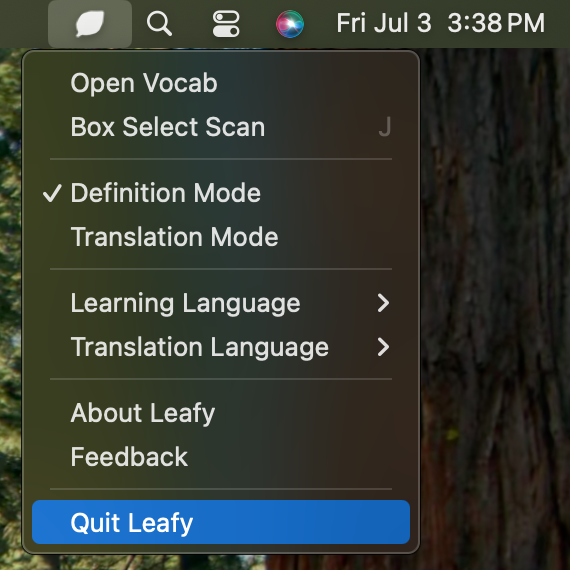
Click the leaf in your menu bar, open Learning Language , choose the language you'll be reading. Get this wrong and scans come back empty .
2. Scan a word
Press ⌥A , then drag a box around any word on your screen. PDFs, websites, videos, screenshots, all of it.
3. Drag it into a folder
Open LeafyApp from the menu bar. Your word is in Recently Scanned with no definition yet. Drag it onto a folder on the left and LeafyApp fills in the rest.
Next
Screen Recording stopped working after I updated LeafyApp
Happens the first time you open LeafyApp after an update. Grant the permission once more and it's done for good.
Why this happens
An update can change LeafyApp enough that macOS treats it as a new app and forgets the permission.
It still shows as on in System Settings, but scans fail or come back black. The entry is stale, not broken.
How to fix it
Quit LeafyApp from the leaf icon in your menu bar. Closing the window isn't enough.
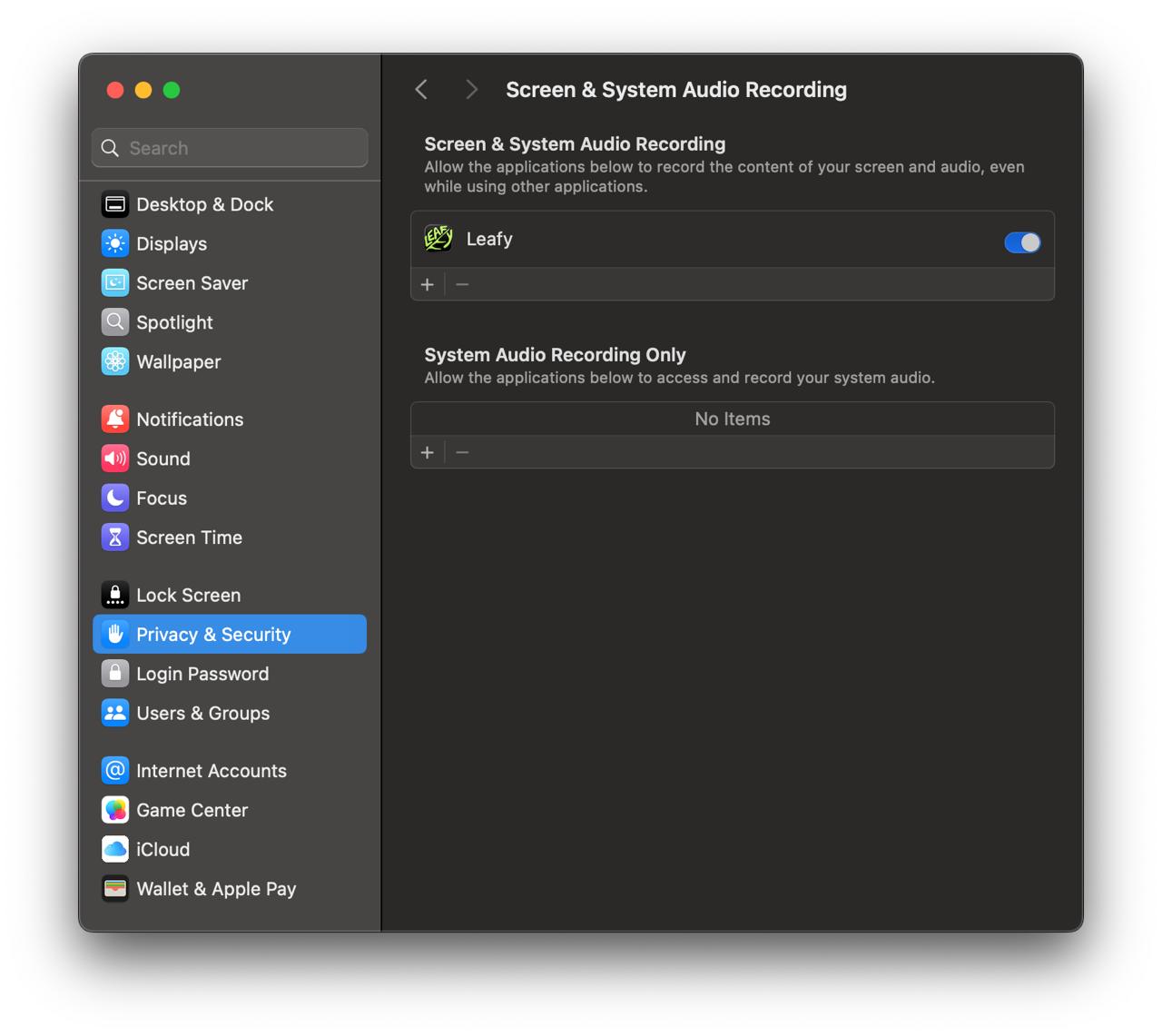
Open System Settings → Privacy & Security → Screen Recording .
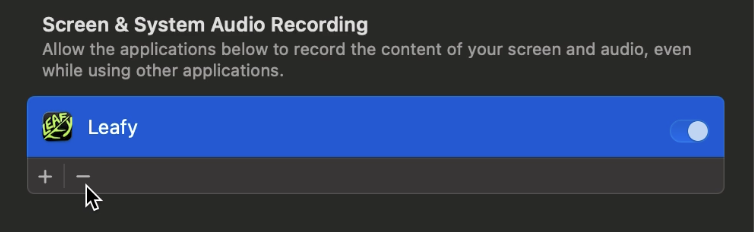
Select LeafyApp and click − below the list to remove it . Switching it off isn't enough: the entry has to go so macOS asks again.
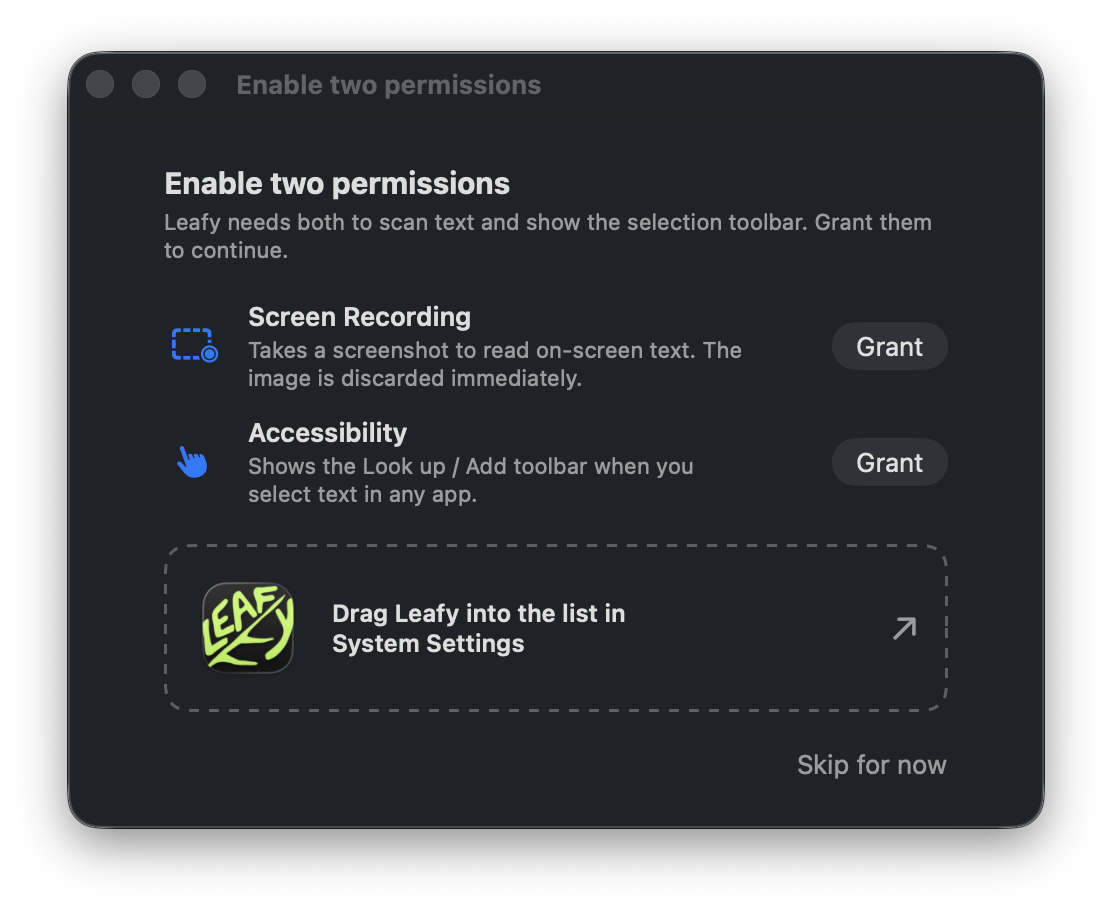
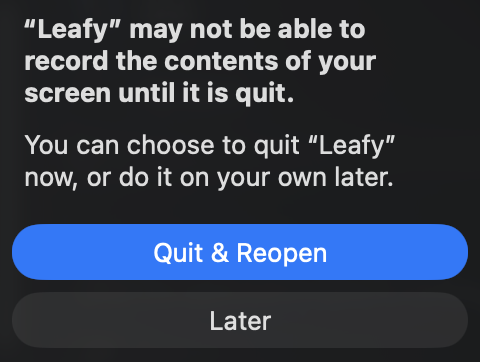
Open LeafyApp again and press ⌥A . macOS asks for permission, and LeafyApp shows this window.
Turn the switch on for LeafyApp in Screen Recording , or drag LeafyApp from that window straight into the list.
macOS asks to restart LeafyApp: click Quit & Reopen . The permission only takes effect then.
This is a one-time thing
Future updates won't ask again.
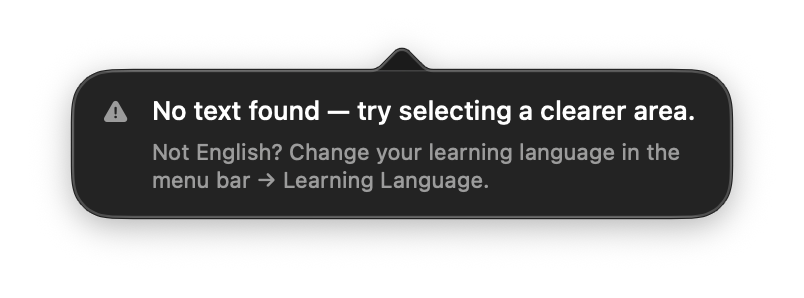
Scanning says “No text found”
Usually it's the language, not the picture. Set your learning language to the language on screen and scan again.
Why this happens
LeafyApp reads text with macOS, and macOS looks for your learning language first.
Set to English but scanning Thai or Greek? It comes back empty, even when the text is perfectly sharp.
How to fix it
Click the leaf in your menu bar .
Open Learning Language and pick the language you're scanning.
Scan again with ⌥A .
Still nothing after switching?
Then it's probably too small or too fuzzy. Zoom the page in, or draw a tighter box around just the word.
Import your own word list
Already keep words in a spreadsheet? Take a template, fill it in, import it.
Filling in the template
Delete the example rows and add your own, one word per row. Only Word is required:
Word : the only required column.Definition , Translation , Part of Speech , Phonetic : leave blank and LeafyApp looks them up for you.Gender , Base Form : for languages that use them (e.g. "die", "f").Context , Notes , Date Added : kept exactly as entered.Language , Folder : which language the word is in, and which folder to file it under.
Importing the file into LeafyApp
Click the LeafyApp icon in your menu bar and open Settings .
Find Vocabulary backup and click Import .
Choose your file. LeafyApp previews every word it found. Untick what you don't want, then confirm.
Coming from another app? Skip the template. LeafyApp reads CSV, TSV, Excel (.xlsx), JSON, plain text and Anki (.apkg) exports as they are.
Get a better voice for reading words out loud
LeafyApp speaks words with a macOS voice. The one your Mac came with sounds robotic. A better one is free and takes five minutes.
1. Hear what you've got
In LeafyApp: Settings → Language → Read out loud . Press play on Best available , then on Built-in . Sound the same? You only have the basic voice.
2. Download a good one
Click Open voice downloads . System Settings opens.
Click the ⓘ next to System voice .
Pick your language on the left. Find a voice marked (Enhanced) or (Premium) and click its cloud button.
Wait for it, then click Done . Change nothing else.
The good ones are 40 MB to 300 MB. Anything under 10 MB is a robotic one.
3. Choose it in LeafyApp
Back in LeafyApp, open the Voice row. The new voice is already there, no restart. Automatic picks the best one you have.
Good to know
Voices are per language. Change what you're learning and the list changes too.
The two switches beside it speak a word after a scan, or during review. Both start off.
Speaking works offline. Nothing is sent anywhere.
Send your words to Anki
LeafyApp makes the card for you when you look a word up. Anki needs one free add-on first, and LeafyApp can install it.
You need Anki on this Mac, version 23.10 or newer.
Let LeafyApp set it up
Open Anki and leave it running.
In LeafyApp: Settings → Anki → Set up .
Click Set it up for me .
Click Restart Anki when it asks. It says All set . Done for good.
Or do it yourself
Click Do it myself in that same card.
In Anki: Tools › Add-ons , or press ⇧⌘A .
Click Get Add-ons… , then paste the code LeafyApp is showing you (there's a copy button beside it) and click OK .
Quit Anki and open it again. The add-on does nothing until Anki has restarted.
The add-on is AnkiConnect , free, written by Alex Yatskov. LeafyApp changes nothing else in your collection.
Sending words
One word: click Add to Anki in the word view.Pick the deck: the arrow beside that button, or New Deck… .A whole folder: give the folder a deck and everything in it goes. Untick anything you don't want first.Everything from now on: turn on Send every word in Settings, Anki.
Good to know
Anki has to be open. Otherwise words wait in LeafyApp and go over next time.
Change the card layout in Settings, Anki, and cards already in Anki change too. Sync your other devices first.
Deleting on one side never deletes on the other.
Says Add-on missing ? Quit Anki, open it again, click Check again .
Look up any selected text with PopClip
PopClip itself is paid: a one-time purchase with a free trial, from its own developer. LeafyApp’s extension is free but needs PopClip running.
Installing PopClip
Download PopClip from its website or the Mac App Store, drag it into Applications , and launch it.
Approve Accessibility when macOS asks. PopClip needs it to see what you select.
PopClip runs on a free trial until you buy it from within the app.
Installing the LeafyApp extension
Download it below, and unzip it if your browser doesn't.
Double-click Leafy.popclipext and click Install when PopClip asks.
LeafyApp has to be on the same Mac. The extension sends words to it.
Using it
Select any text, then tap the LeafyApp icon in the PopClip toolbar to define, translate, or save it.
LeafyApp only ever reaches out from binjto@gmail.com , Discord as jtobin0935 , or u/Thin-Lawfulness-7861 on Reddit, and nowhere else.