Screen Recording stopped working after I updated Leafy
This can happen the first time you open Leafy after a recent update. It's a one-time hiccup, not a bug — just say "yes" to the permission one more time and it's fixed for good.
Why this happens
Every so often, an update changes Leafy enough that your Mac treats it a bit like a brand-new app — the same way it would if you'd never granted permission before. So it quietly forgets that you'd already allowed Screen Recording.
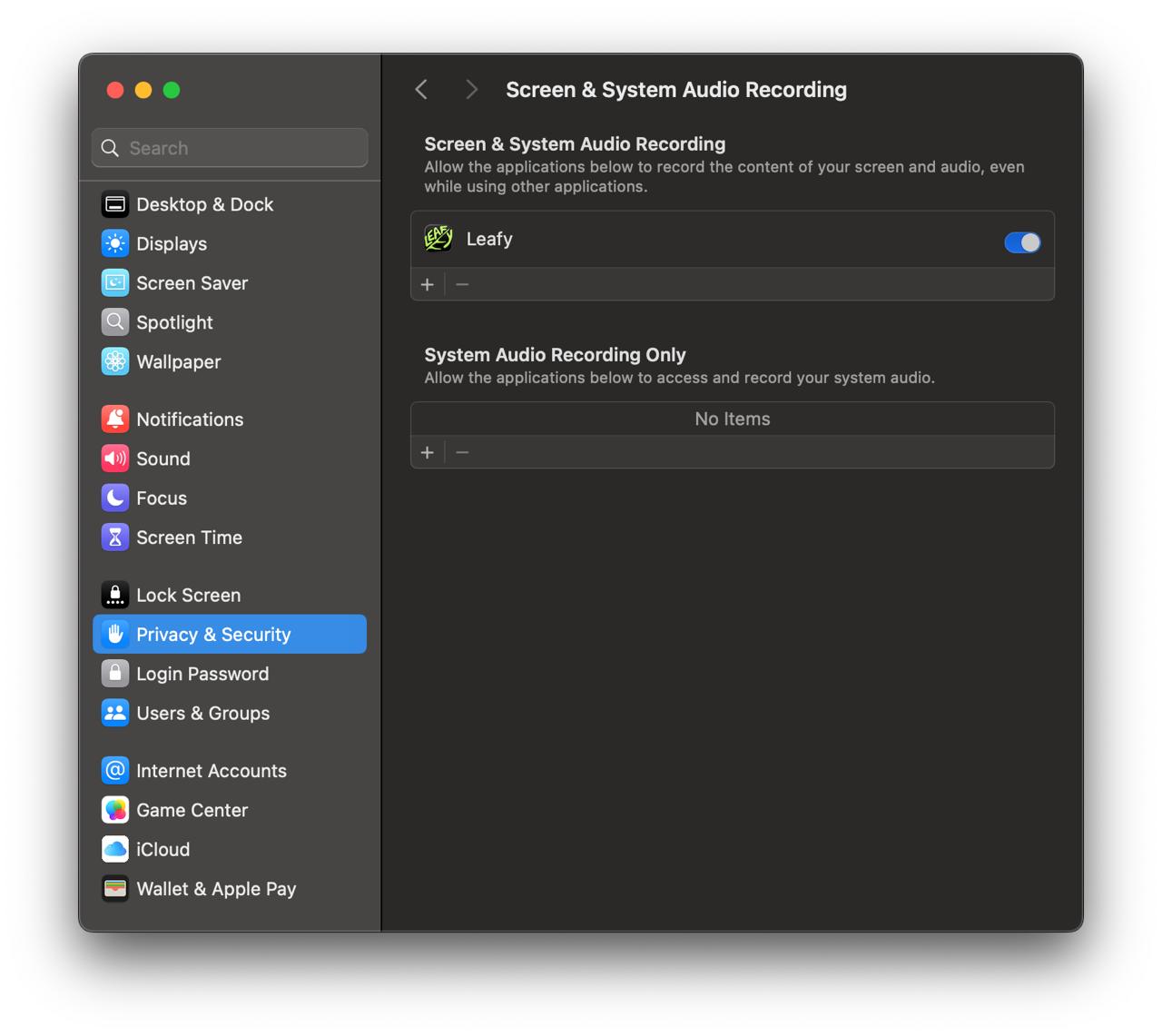
You might still see Leafy listed as "on" in System Settings, but scanning or recording will fail or show a black screen. That's just an old, stale permission — nothing is actually broken.
How to fix it
-
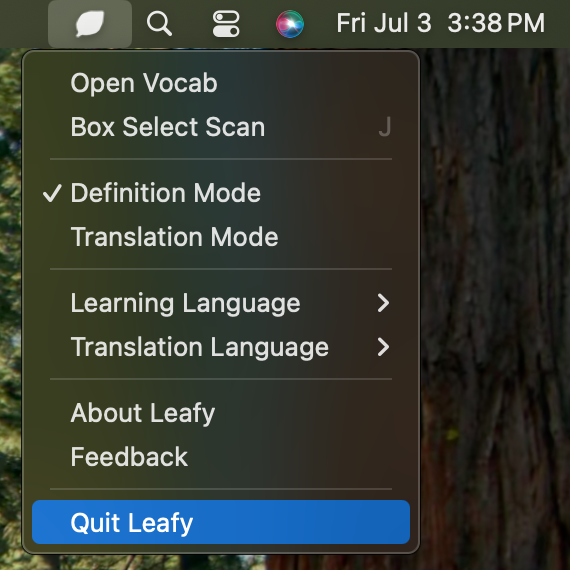
Quit Leafy completely — click the Leafy icon in your menu bar (top-right of your screen), then choose Quit Leafy. Just closing the window isn't enough.
-
Open System Settings → Privacy & Security → Screen Recording.
-
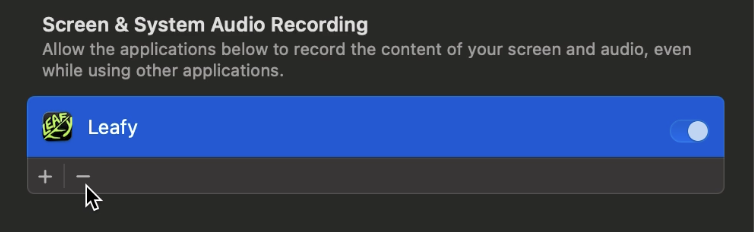
If Leafy is listed there, turn its switch off (or remove it from the list, if you can).
-
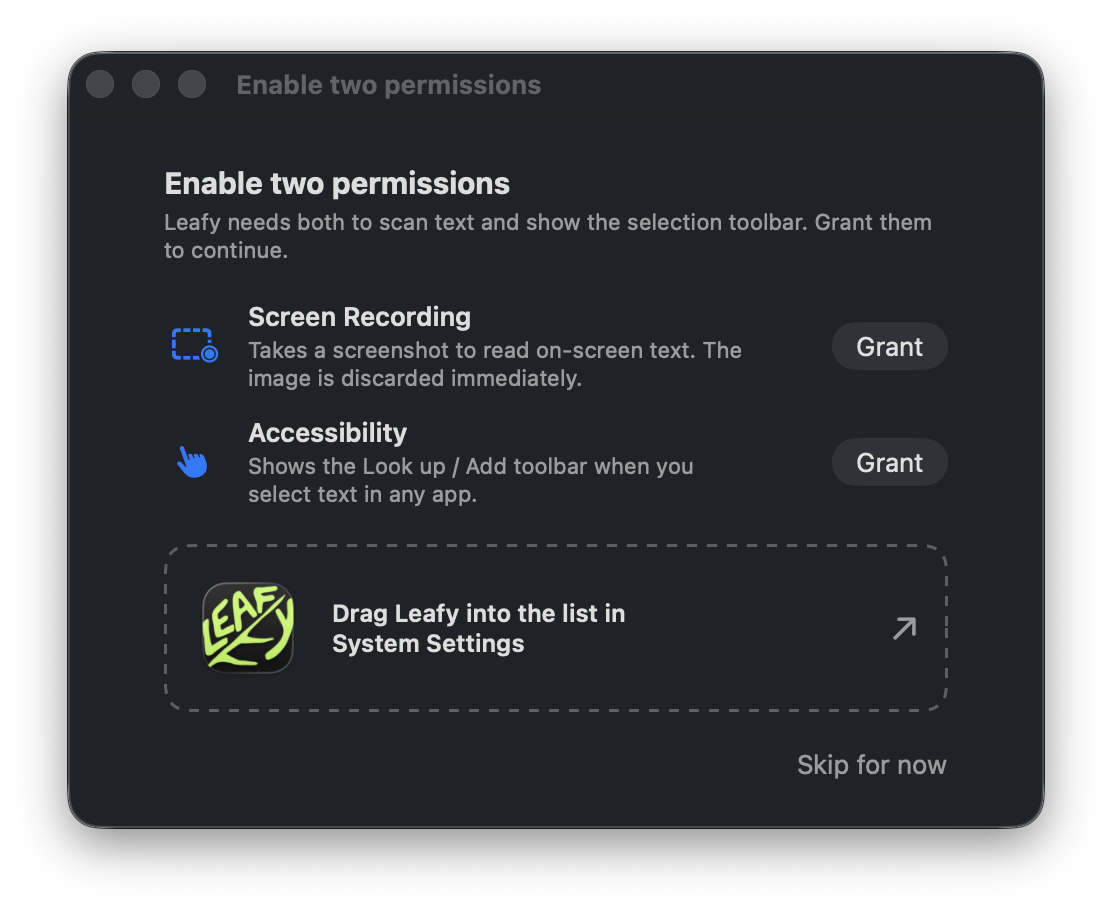
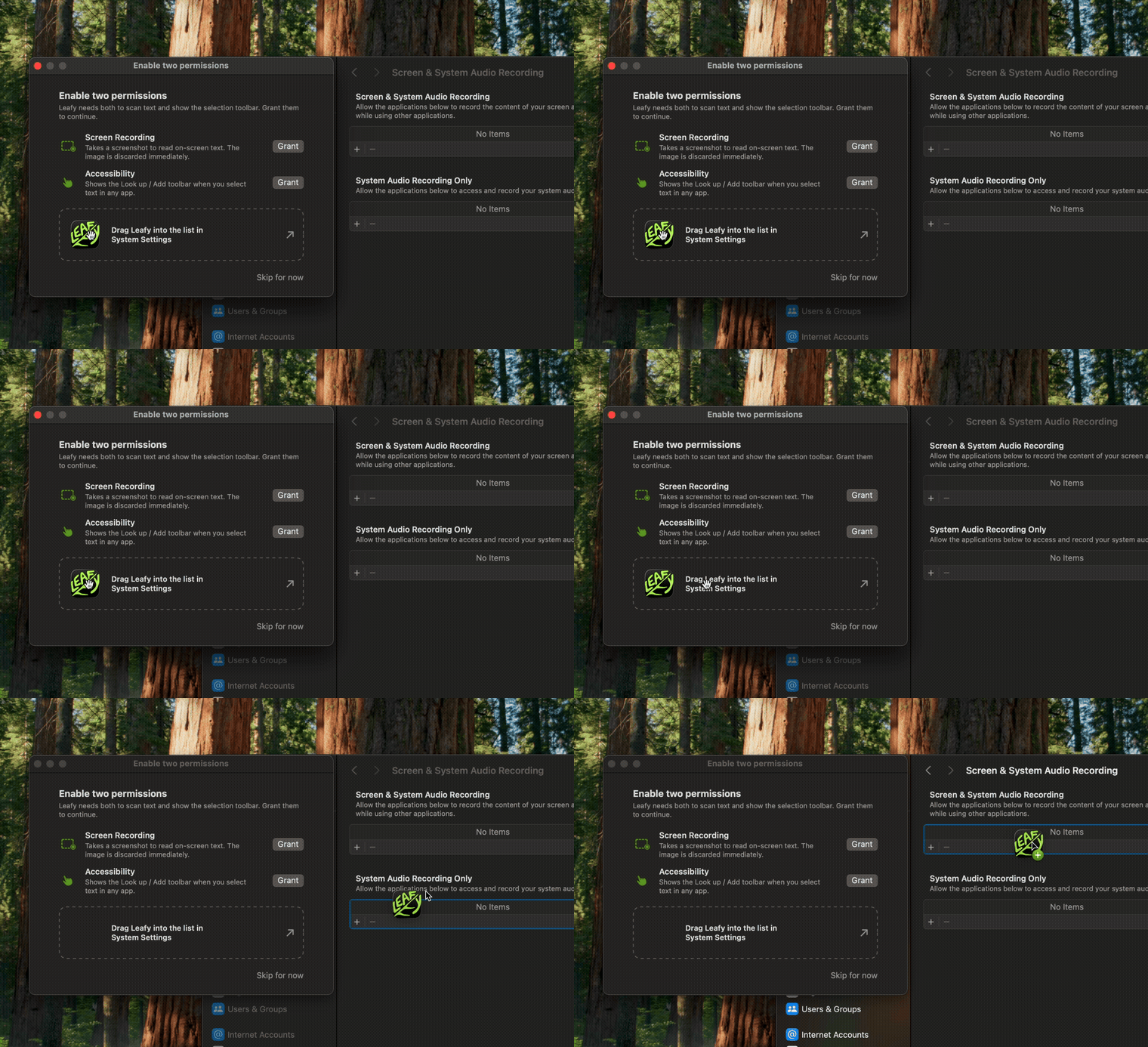
Open Leafy again, then press ⌥A (the scan shortcut). If you removed Leafy from the list, this makes it ask for permission again — Leafy will show you a window like this.
-
Go back to Screen Recording settings and turn the switch on for Leafy — or just drag Leafy straight from that window into the System Settings list. This alone doesn't turn recording on yet — you still have to quit and reopen Leafy for it to actually take effect, which is exactly what the next step does.
-
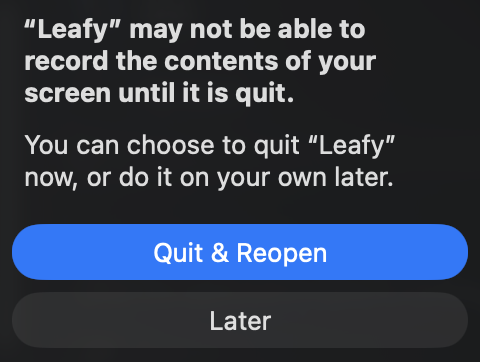
macOS will ask if it can quit and reopen Leafy for you — click Quit & Reopen. This step is required: turning the switch on by itself does nothing until Leafy actually restarts.
This is a one-time thing
Once you've done this, you won't need to repeat it — future updates won't ask you again.
Still stuck? Email us at binjto@gmail.com and we'll help you sort it out.